Phones and tablets have become some of the most popular devices for browser games. They are always nearby, easy to hold and perfect for a quick round on the move. Touch controls, however, work differently from a mouse and keyboard, and a few simple techniques can make a big difference to how comfortable and successful your play feels. This guide covers the main kinds of touch input and how to get the best from them.
The four basic touch actions
Almost every touch game is built from a small set of gestures. Understanding them makes the controls section on any game page instantly clear.
- Tap: a quick touch and release. Used for selecting items, jumping, shooting or pressing buttons.
- Hold: touching and keeping your finger down. Often used to charge a jump, accelerate or keep firing.
- Swipe: a quick flick in one direction. Common in runners for changing lanes, jumping or sliding.
- Drag: touching and moving your finger while keeping contact. Used for steering, moving pieces or drawing lines.
Many games combine these, for example dragging to aim and releasing to fire. When a game page lists its controls, it will usually describe them in exactly these terms.
Virtual joysticks and on-screen buttons
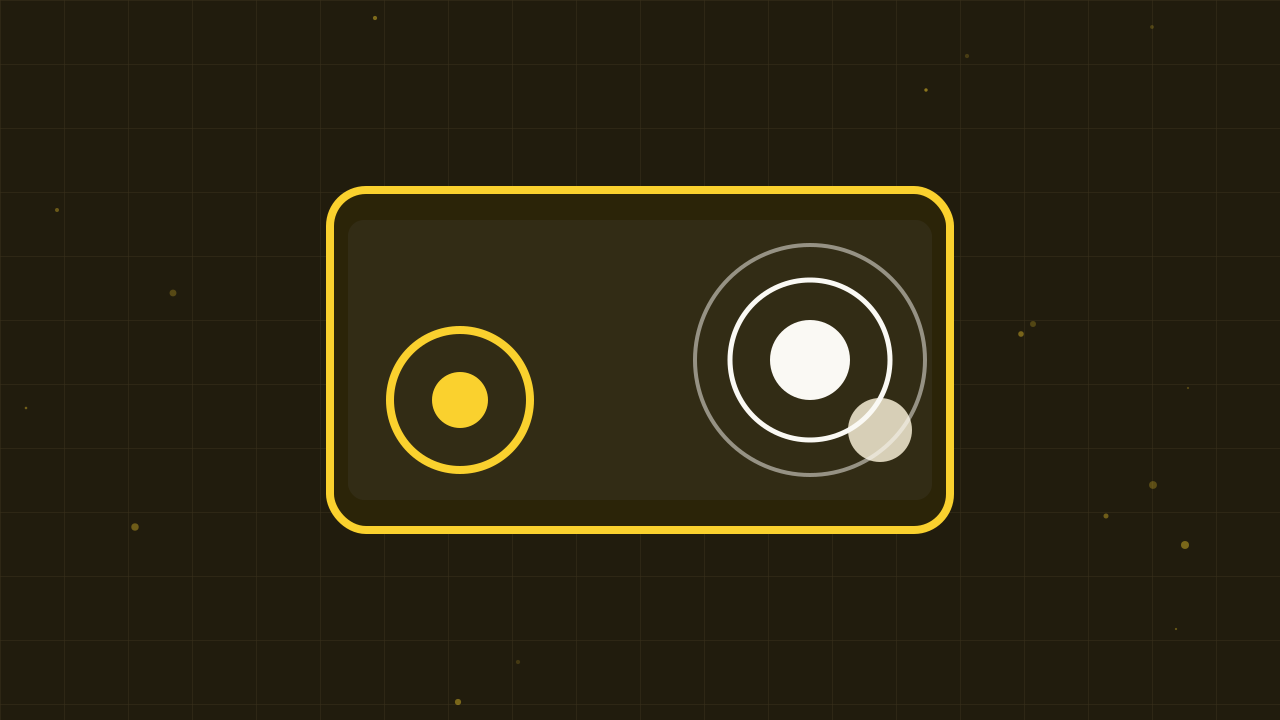
Games that would use the keyboard on a computer often show on-screen controls on touch devices. A virtual joystick is usually a circle in the lower left corner: place your thumb in it and slide gently in the direction you want to move. Action buttons such as jump, attack or boost usually sit on the right.
The key to using a virtual joystick well is to keep your thumb resting on it rather than lifting it between moves. Small movements give fine control, while pushing to the edge gives full speed. Some games use a floating joystick, which appears wherever you first touch the left side of the screen, so you never have to look for it.
How to hold your device
Comfort matters more than most people expect. For games played in landscape, hold the device with both hands and use your thumbs, keeping your palms off the screen. For portrait games that need one finger, it can help to rest the device on a table or your lap and use your index finger, which is more precise than a thumb.
If your hands get tired, take a short break. Our article on healthy gaming habits includes simple stretches and posture tips.
Use full screen
On a phone, the page around a game can scroll if your finger slips outside the game area, which can interrupt play. Pressing the full screen button on the game page fixes this by giving the whole screen to the game. It also hides browser bars and gives you a larger view. To leave full screen, use your device's normal back gesture.
Match the game's orientation
Some games are designed to be played with the device held sideways, others upright. If the game looks small or squashed, try rotating your device. Racing, platform and action games usually prefer landscape, while many puzzle and stacking games are built for portrait. Our guide to screen orientation and full screen explains why games are designed this way.
Accuracy tips for taps and swipes
- Keep the screen clean. Smudges and moisture can cause missed or extra touches.
- Make swipes short and decisive. Long, slow swipes may be read as drags.
- Tap with the pad of your finger. It is more reliable than a fingertip edge or fingernail.
- Avoid resting extra fingers on the screen. Many games react to every touch, so stray fingers can cause unexpected actions.
Games that suit touch screens best
Some genres feel naturally at home on a touch screen. Puzzle games where you drag or tap pieces, one-tap arcade games, stacking games, merge games and many cooking and idle games are all excellent on phones and tablets. You can explore suitable styles in the Puzzle, Casual and Idle and Tycoon categories.
Fast games with many controls, such as some shooters or detailed driving games, can still be great on touch screens, but they reward a little practice with the on-screen layout first.
Keep an eye on battery and heat
Games use more power than reading a web page, especially 3D ones. If your device becomes warm, give it a rest. Low power modes can slow games down, so if a game feels sluggish, check whether one is switched on. Lowering screen brightness slightly is a good way to save battery without affecting the game.
When touch input does not respond
If a game ignores your taps, try these steps:
- Make sure you are touching inside the game area, not the page around it.
- Refresh the page and let the game finish loading before you touch it.
- Check the controls section on the game page, as a few games are designed mainly for a keyboard.
For more general fixes, see our guide to making browser games run smoothly.
Practice makes it natural
Touch controls can feel unfamiliar for the first few minutes, but they quickly become second nature. Start with a simple game that uses only taps, move on to swiping and dragging, and then try a game with a virtual joystick. Before long you will be steering, aiming and dodging with confidence wherever you happen to be.